

Higher-Quality, More Precise AI: What's New in App Builder
The July and October 2026 releases of App Builder improve the quality and precision of AI: more complete generated apps, edits that change only what you ask for, closer results from designs, and live progress for each request. Plus Apex Charts and the update to Ignite UI for Angular 22.
Georgi Anastasov 9min read
Since our last post, App Builder has shipped two releases, in July and October 2026, and both focus on one thing: better results from AI. July moved generation to newer, more accurate models and made it faster. October reworks how AI generates and edits apps, so generated apps are more complete and edits stay on what you asked for.
Here are the highlights:
- Better apps from the first prompt - working data, wired buttons and a theme that fits the subject.
- More precise editing - change one component, every match in the app, or pages and navigation, and leave the rest as it was.
- Closer results from your designs - attach a mockup and the app follows its pages, text and palette.
- Progress and control - follow each step, stop at any time, and edit or retry a prompt.
- New in the designer - Apex Charts and a Select action for the Carousel.
Higher-Quality, More Precise AI
The improvements apply wherever you use AI in App Builder, and all three entry points share the same chat history:
- Create with AI on the main page, to start a new app.
- AI Chat in the designer, to generate, change or ask about the open app.
- Edit with AI on a selected component, to change or ask about that component.
The July release laid the groundwork: newer, more accurate models, better handling of attached images, better multi-view navigation, data bindings and data repeater layouts, and faster generation, with images finishing in the background while you use the app.
Better Apps From the First Prompt
Each app is now planned before it is built: its pages, navigation and data, and what makes it specific to your subject. Page names, wording and features come from your request.
As a result, more of the app works when generation finishes:
- The data matches the grids, charts and lists that use it.
- Inputs keep their values, and a button can stay disabled until a box is ticked.
- Buttons go to a real page, open or close a dialog, or, for actions such as Save or Export, show a confirmation message.
- The theme suits the subject, uses any hex colors you name, and keeps text readable against its background.
If one part can’t be completed, such as the theme or a single page, the rest of the app can still be delivered and the summary says what is missing.
Example
Create a modern AeroNova drone store and service website focused on the AeroNova Mini, Flip, and Neo drone lines. Showcase featured drones with large product imagery, sample specifications and pricing, comparisons, accessories, and purchase actions, while also highlighting professional maintenance and repair services with clear service options and booking actions. Make the experience feel premium, technical, and adventurous, with strong visual hierarchy, immersive drone photography, polished product sections, and a design inspired by aerial exploration rather than a generic ecommerce layout.
Start From a Design
The same quality improvements apply when you start your application from an existing design. The AI now inspects your design more closely, extracting its views, navigation, structure, text, data, theme and typography before it generates the application.
When you attach several images, each one can guide its own page. Repeated cards and table rows become working data with the design’s own field names. The result follows the design closely, but it is not a pixel-perfect copy.
Example
Create an app that follows the attached image design.
Reference design used in this example
More Precise Editing
Editing with AI has been reworked for precision. Each request works from the current state of the app, including changes you made by hand. The AI makes the smallest change that does the job and leaves the rest of the app as it was.
You can ask for changes like these:
| What you ask for | Example request |
|---|---|
| Change, add, move or remove components | ”Make the Save button green”, “Add a Save button to the form” |
| Change data or wiring | ”Show only name and price on this grid” |
| Add state | ”Add a checkbox that has to be selected before the Place Order button is enabled” |
| Change every match | ”Make every card outlined” |
| Change pages and navigation | ”Rename the Dashboard page to Home” |
| Combine changes | ”Rename the app and add a Reports page” |
With a component selected on the canvas, “this” refers to that component. When a name matches several components, the AI asks which one you meant instead of guessing.
Example
Change this button’s text to “Book a Service Appointment” and style it with an orange background and white text.
Adding a field to data stored in the app, such as “add a supplier column”, keeps the existing rows. With a button selected, “go to Orders instead” changes where it navigates.
When you add, rename, reorder or remove pages, the navigation follows, and the AI asks before removing a page. A message with several changes runs as steps in order, and if one part can’t be done, the summary says what was left out.
Example
Add a simple footer to every page with a centered container and the text ”© 2026 AeroNova. All rights reserved.”
Add Pages and Sections That Match Your App
New pages and sections get the same quality improvements. “Add a Reports page showing this month’s orders” or “add a section showing revenue on the Dashboard” now builds the new part the same way a whole app is built, with working data, wired buttons and matching colors. The AI reads your existing pages first, so the new part follows their layout and wording, and the rest of the app is left alone. Sections can go above, below or between existing ones, and new pages are added to the navigation.
Example
Add a Flight Academy page with beginner, intermediate and advanced drone training courses. Show each course’s description, duration and price, with a Book Course button.
Restyle Your App
Theme changes stay scoped to what you ask for. “Make it darker” or “use our brand blue” changes the palette, while changing one component’s color affects only that component. You can also switch to a theme from your workspace by name, or attach an image in AI Chat and ask to “make it look like this”.
Example
Make the app darker and use our brand blue.
Ask About Your App
You can now ask about the app itself: “What does this button do?”, “Why is this table empty?” or which components use a particular variable. The AI answers from the current app, using its own page and button names, and nothing in the app changes.
Product questions now also cover Ignite UI, with links to the sources.
Follow and Control Each Request
Progress is now shown as a live list of steps, such as “Reading your app’s current state - 5 pages” or “Writing the pages - 3 of 4”, in the chat and on the canvas. You can stop a request at any time, edit your request and run it again, or retry one that failed.
Example
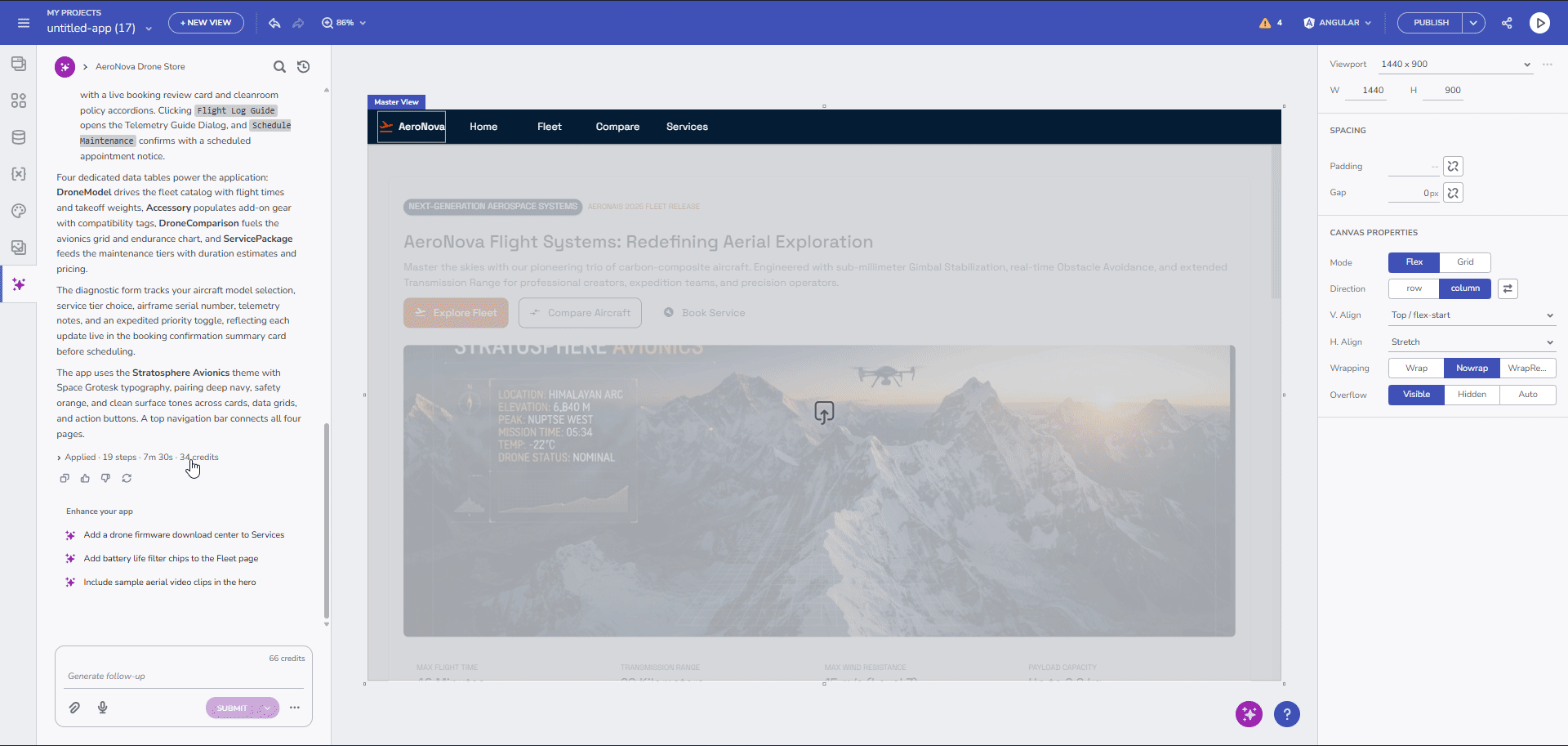
A request is in progress, with the live list of steps in the chat, the same step on the canvas, and the Stop button.
When a request finishes, a status line shows the outcome, the duration and the credits used, followed by a short summary of what changed and three suggested next steps.
Example
A request has finished, with the status line, the summary and the suggestions.
AI Credits
AI requests use credits. You get 100 credits every 30 days, and unused credits don’t carry over. Each type of request has a base price:
| Request | Credits |
|---|---|
| Question about your app, or a product question | 1 |
| Change something that exists, including app-wide changes | 5 |
| Change pages and navigation | 5 |
| Change the look (theme and colors) | 7 |
| Add a new page or section | 10 |
| Generate a whole app | 20 |
Each generated page, section, data source and image adds 1 credit. Failed and cancelled requests are free, and so are turns where the AI asks you a question. Your balance is shown in the chat, and each reply shows what it cost. If you run out, you can claim a one-time bonus of 100 credits from the chat.
New in the Designer
Apex Charts
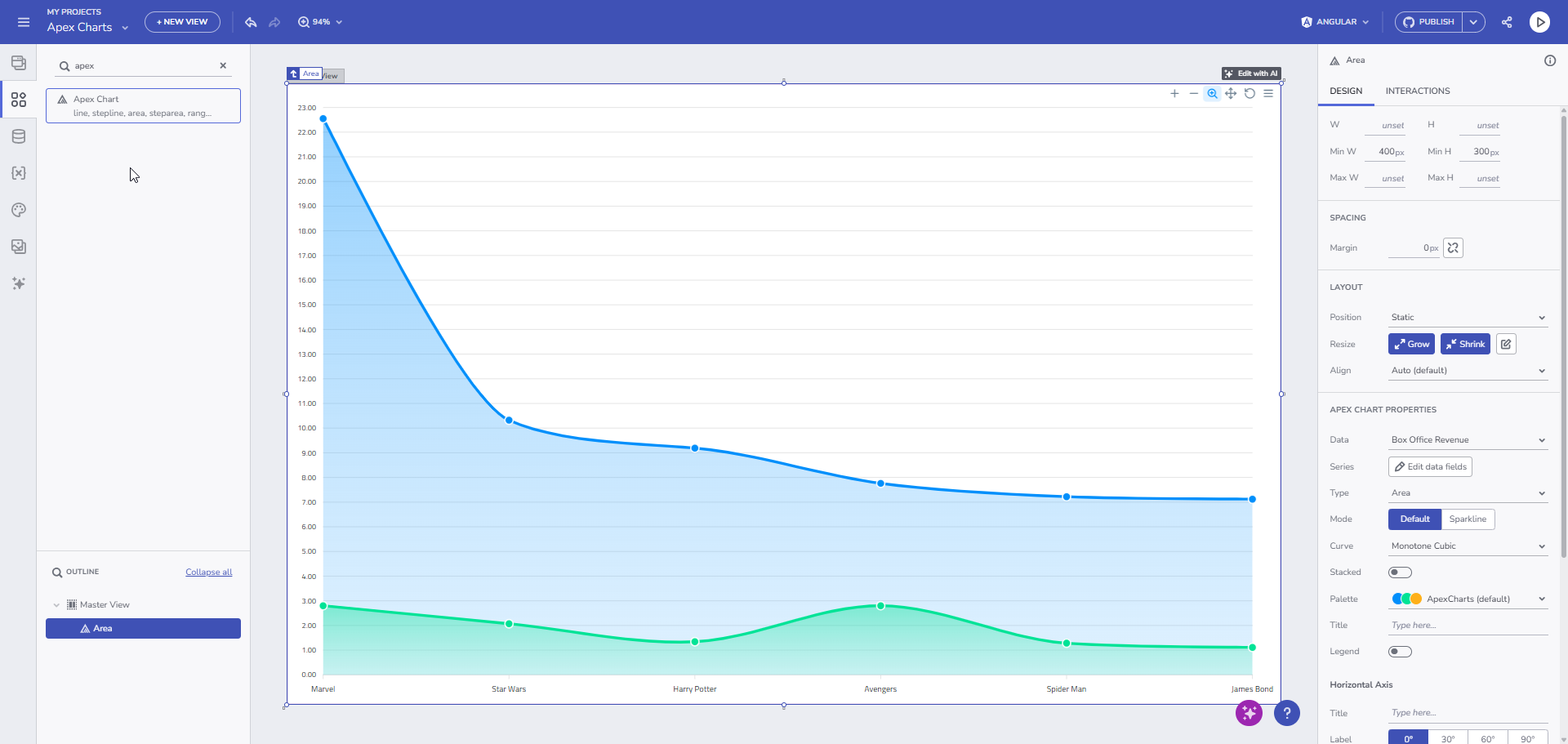
App Builder now ships with Apex Charts, complementing our Ignite UI charts. You can add them by hand as well as with AI. Drag a chart onto the canvas and configure it like any other component.
Example
An Apex chart is added to a page.
Carousel Navigation
The Carousel has a new Select action, so an interaction can move it to a specific slide, for example from a thumbnail or a “Next step” button. AI generation can set up these actions too.
Example
Clicking a thumbnail moves the Carousel to that slide.
Platform and Maintenance Updates
- App Builder now ships with Ignite UI for Angular 22.
- General bug fixes, plus security and performance updates.
Wrapping Up
These releases represent a major overhaul of the AI experience in App Builder, bringing more accurate and predictable results. Try it on your next project and tell us what you think on Discord or GitHub Discussions.